> For the complete documentation index, see [llms.txt](https://docs.appmysite.com/llms.txt). Markdown versions of documentation pages are available by appending `.md` to page URLs; this page is available as [Markdown](https://docs.appmysite.com/app/connectivity/wordpress-connectivity/troubleshoot-connectivity.md).
# Troubleshoot connectivity
### How to troubleshoot connectivity between your WordPress website and app?
If your app fails to connect to your website, it’s likely due to configuration or server-related issues. This guide outlines a step-by-step approach to help you identify and resolve the most common causes of connectivity failure.
Watch this guide to troubleshoot connectivity issues between your website and app:
Let’s begin by checking the most critical connection points between your app and website.
#### Step 1: Verify SSL certificate
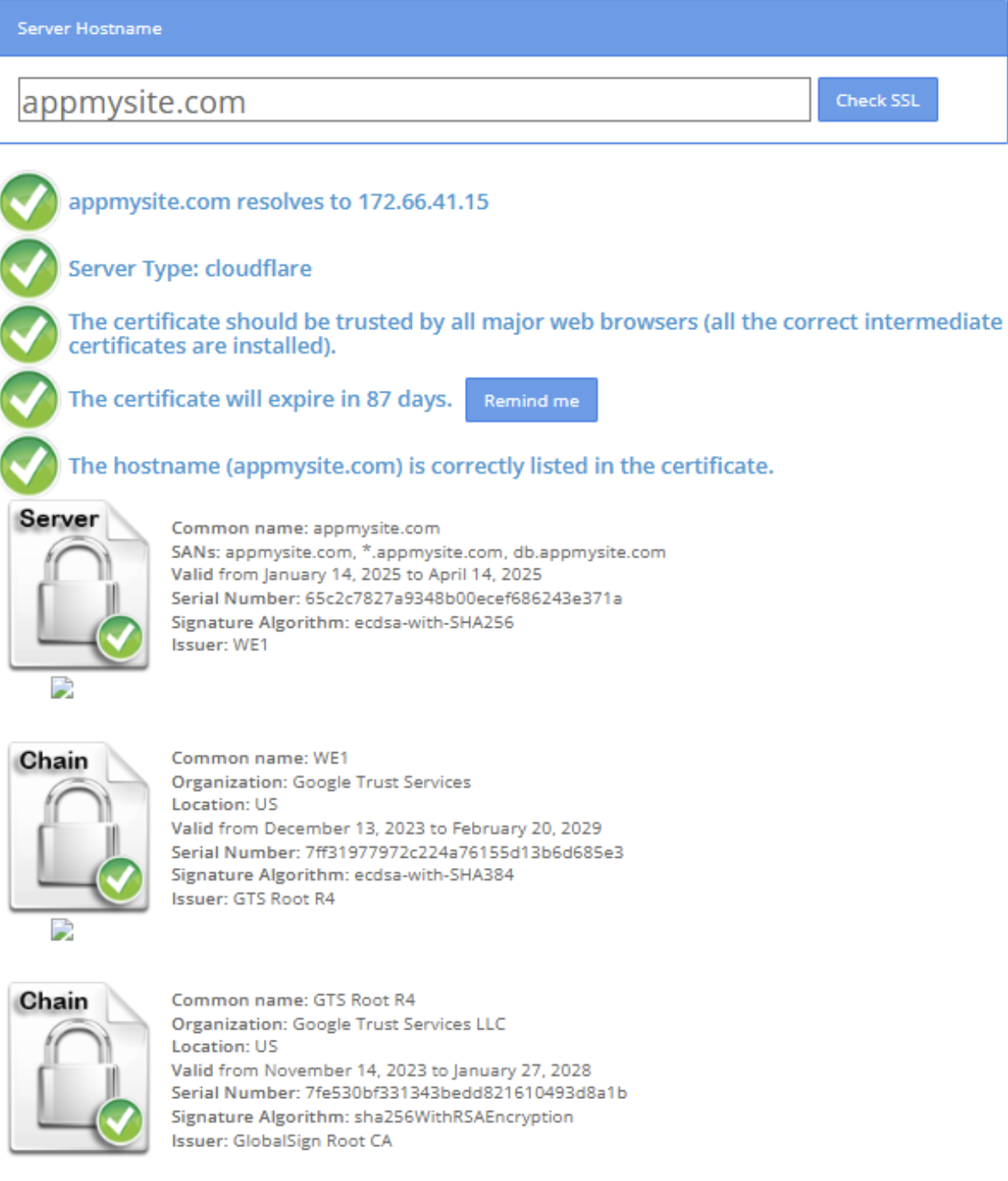
Confirm that your website has a valid SSL certificate to ensure secure communication with AppMySite. To check if you a valid SSL certificate, follow these steps
* Visit a reliable SSL Checker website
* Enter your website domain
* Review the certificate status
**Expected outcome:**
All indicators should appear green. There should be no amber or red warnings.
**Next steps:**
If all indicators don't appear green, it means your website needs a valid SSL certificate. Contact your hosting provider to install or renew your certificate.
**Step 2: Confirm plugin and website features**
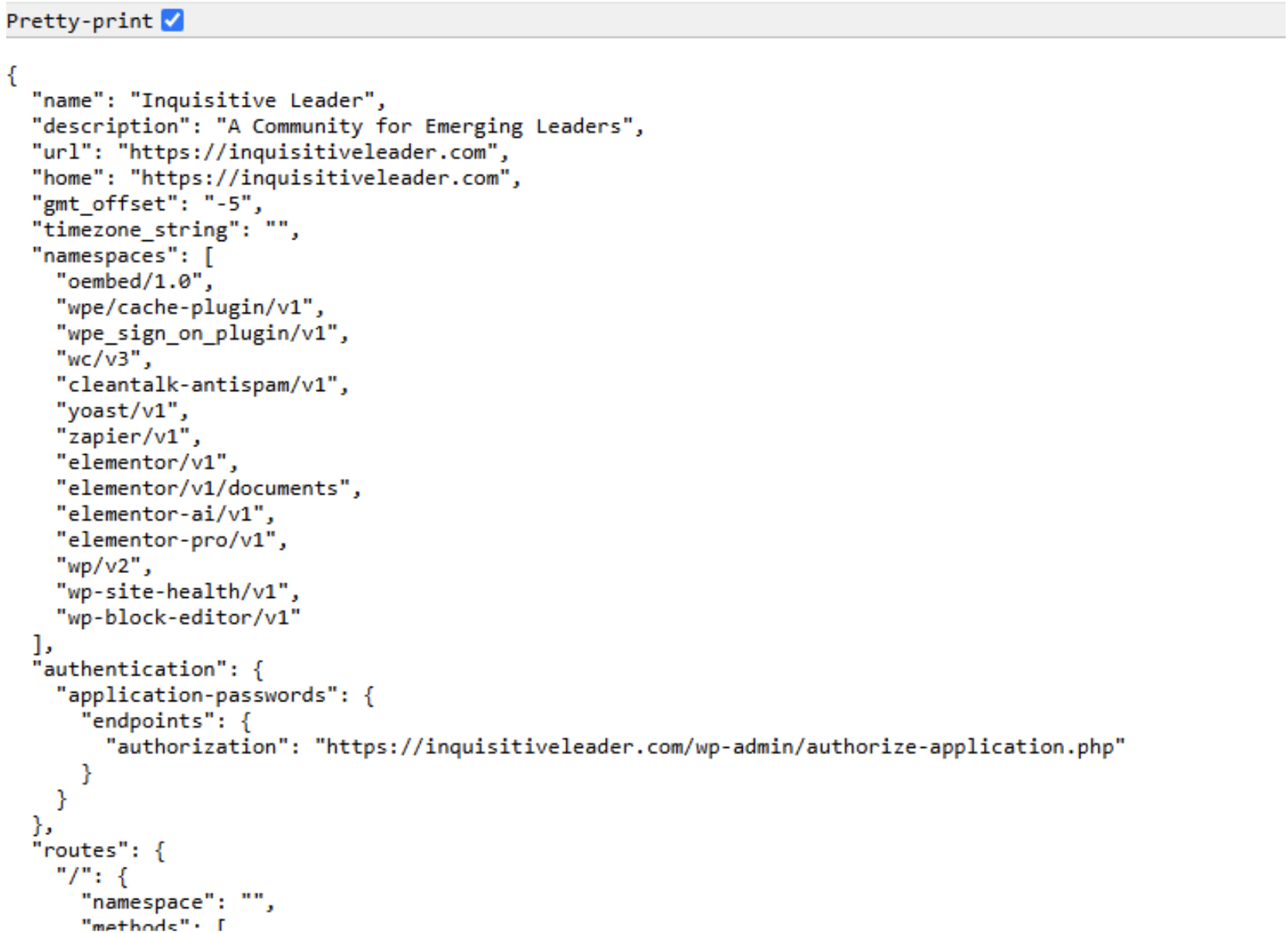
Ensure that the WordPress REST API is accessible and functioning correctly, as it is essential for connecting your website with AppMySite. To verify, follow the steps below:
* Visit:
{% hint style="warning" %}
Simply replace yourwebsite.com with your actual domain.
{% endhint %}
**Expected outcome:**
A structured JSON file should load in the browser without any errors.
**Next steps:**
If you see an error or the page doesn’t load properly, continue with the next steps in this guide to further troubleshoot the issue.
**Step 2.1: Check for AppMySite’s plugin installation**
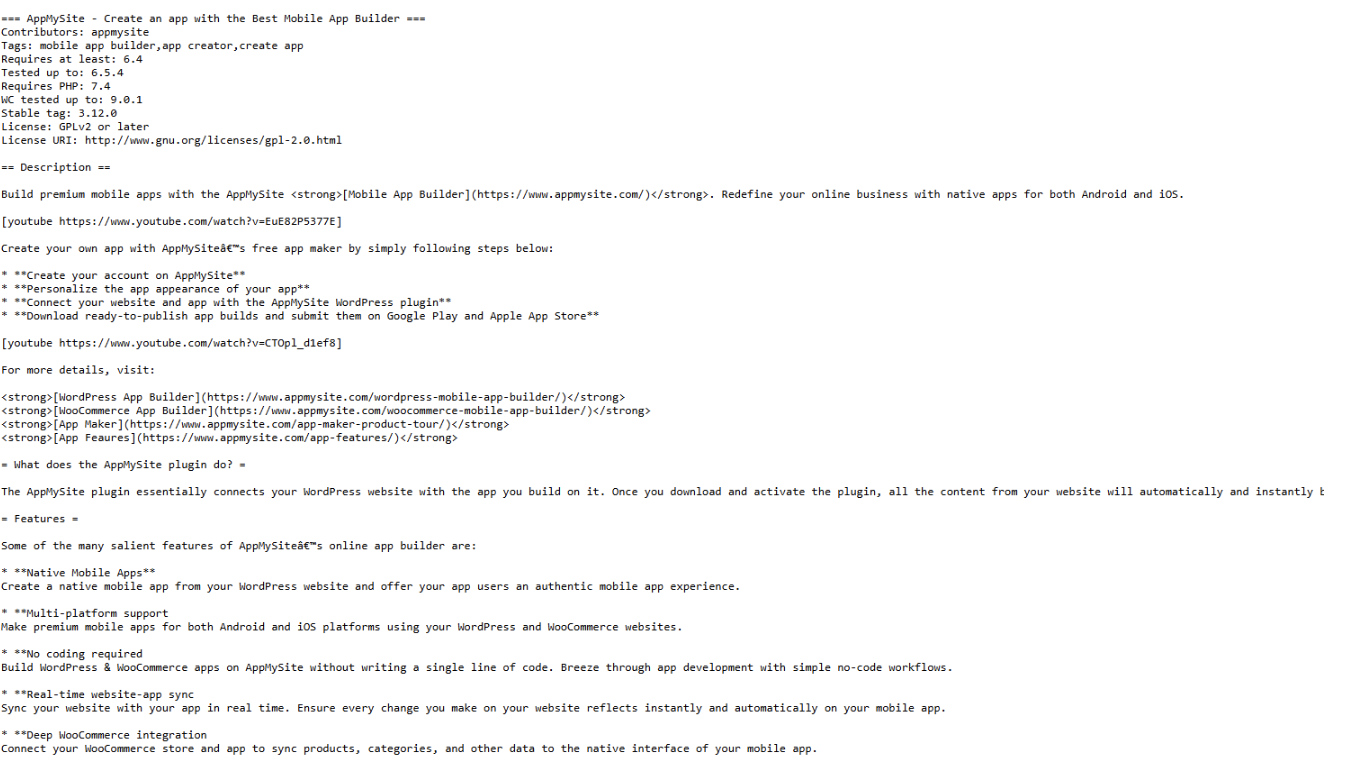
Verify that the AppMySite plugin is properly installed on your WordPress website. Follow these steps to check plugin activation:
* Visit:
{% hint style="warning" %}
Simply replace yourwebsite.com with your actual domain.
{% endhint %}
**Expected outcome:**
You should see a text file mentioning “AppMySite,” confirming that the plugin is installed.
**Next steps:**
If the file is missing or doesn't mention AppMySite, install the plugin from your WordPress admin panel before proceeding.
#### **Step 2.2: Verify plugin’s endpoint accessibility**
Ensure that the AppMySite plugin can successfully communicate with your WordPress REST API. Follow these steps to check endpoint accessibility:
* Visit: [https://yourwebsite.com/wp-json/wc/v3/ams-menu-names](https://yourwebsite.com/wp-json/wc/v3/ams-menu-names)
{% hint style="warning" %}
Simply replace yourwebsite.com with your actual domain.
{% endhint %}
**Expected outcome:**
A JSON response should load without any errors, indicating the endpoint is accessible.
**Next steps:**
If the endpoint does not return a valid response, continue with the troubleshooting process.
**Step 2.3: Install and run Health Check plugin**
Identify potential plugin or theme conflicts that could disrupt connectivity. Watch this tutorial to identify plugin/them conflict:
{% embed url="" %}
* Go to Plugins → Add New Plugin in your WordPress admin panel.
* Search for and install the **Health Check & Troubleshooting** plugin.
* Once installed, go to Plugins → Installed Plugins and click Health Check under the plugin name.
* On the Health Check Dashboard, review issues and recommendations.
**Expected outcome:**
The Site Health Status should not report any critical issues that may affect API or plugin connectivity.
**Next steps:**
Watch this tutorial to resolve issues if detected:
{% embed url="" %}
* Navigate to the Troubleshooting tab in the Health Check plugin.
* From the Plugins screen, enable only AppMySite and WooCommerce plugins (if installed). Click Enable while troubleshooting.
* Check whether connectivity between your app and website is restored in the connectivity section of your AppMySite app.
{% hint style="success" %}
**How Troubleshooting Mode works**\
Troubleshooting Mode isolates your admin experience, simulating a clean WordPress install. It only affects your session—your visitors will continue to see your normal site. You can selectively enable plugins and themes to identify conflicts.
{% endhint %}
{% hint style="danger" %}
Once testing is complete, **exit Troubleshooting Mode** from the Health Check Dashboard to return your site to normal operation.
{% endhint %}
**Step 3: Check permalink settings**
Ensure your website’s permalink structure is compatible with AppMySite's connectivity requirements. Watch this tutorial to check permalink settings:
{% embed url="" %}
* Log in to your WordPress admin panel.
* Navigate to **Settings → Permalinks**.
* Verify that one of the following permalink structure is selected:
* Day and name
* Month and name
* Numeric
* Post name
**Expected outcome:**
A supported permalink structure should be active, ensuring proper API endpoint formatting.
**Next steps:**
If a different option is selected:
* Change to any of the supported options listed above.
* Click Save Changes.
* Retry connectivity from AppMySite.
**Step 3.1: Check for plugin conflicts**
Identify any installed plugins that may block or interfere with AppMySite’s connectivity. Follow these steps to check plugin conflicts:
* Log in to your WordPress admin panel.
* Go to Plugins → Installed Plugins.
* Review your active and inactive plugins.
* Cross-check them against this list of plugins known to potentially block API communication or cause conflicts:
* **Security Plugins**:\
WordFence Security, iThemes Security, Sucuri Security, WP Cerber Security, All In One WP Security, MalCare Security, FortiGuard Intrusion Prevention, BulletProof Security, Shield Security, Defender Security by WPMU DEV, Hide My WP Ghost, NinjaFirewall (WP Edition), SecuPress Pro, Sitelock Security
* **Caching/Performance Plugins**:\
W3 Total Cache, WP Super Cache, LiteSpeed Cache, WP Rocket, Super Page Cache for Cloudflare, Autoptimize, Cache Enabler, Hyper Cache, Swift Performance, Breeze Cache, Hummingbird
* **GeoIP/Blocking Plugins**:\
IP2Location Country Blocker, WP GeoIP Redirect Rules, Currency Countries (by IP)
* **REST/API/Auth Plugins**:\
Orange Mini REST API Authentication, WordPress REST API Authentication, JWT Auth, API Bearer Auth
* **WooCommerce & Checkout Plugins**:\
WooCommerce Memberships, Profile Builder Pro, Force Authentication Before Checkout, Age Gate, Booked, Order Min/Max for WooCommerce, WooCommerce Product Bundles, After Sale Surveys
* **GDPR & Consent Plugins**:\
Cookie Information
* **Translation/Search/UI Plugins**:\
TranslatePress, Neve Pro Addon, Ajax Search, Query Monitor, WPML, Relevanssi, Ivory Search, SearchWP, FacetWP
* **Membership & Role Management Plugins**:\
Ultimate Member, User Role Editor, Restrict Content Pro, MemberPress
* **Backup & Migration Plugins**:\
UpdraftPlus, Duplicator Pro, BackupBuddy, WP Migrate DB Pro
* **Marketing & Builder Plugins**:\
Ad Inserter, Popup Builder, OptinMonster, Elementor, Beaver Builder
* **SEO Plugins**:\
Rank Math SEO, Yoast SEO
**Expected outcome:**
No conflicting plugins from the list should be installed or active.
**Next steps:**
If any plugin from the list is found:
* Refer to **Step 2.3**: Install and Run Health Check Plugin to activate Troubleshooting Mode.
* Enable only AppMySite and WooCommerce plugins to test compatibility.
* If the issue is resolved in troubleshooting mode, disable the conflicting plugin or find an alternative.
**Step 4: Hosting, security, and firewall settings**
Ensure that your website’s hosting environment and firewall settings do not block AppMySite’s connection requests. Steps to follow:
Whitelist AppMySite’s IP addresses in the following systems:
* DNS firewall (e.g., Cloudflare or other CDN-level security systems)
* Network firewall (configured at the hosting or server level)
* Server firewall (for dedicated or VPS-hosted environments)
* Plugin firewall (enabled through security, bot-checking, or captcha plugins)
Each of these layers can potentially block the REST API calls AppMySite uses to connect with your site.
**Expected outcome:**
AppMySite’s requests are not blocked at any firewall level, and connections to your website are successfully established.
**Next steps:**
If your website is behind a firewall, CDN, or has active security measures, request support from your hosting provider or IT team to apply the IP allowlist or follow this guide:
{% content-ref url="/pages/4vC5j81PmlJZizR4BTaJ" %}
[Whitelist IP Addresses](/app/connectivity/wordpress-connectivity/whitelist-ip-addresses.md)
{% endcontent-ref %}
**Still having connectivity issues? Contact us**
If the steps mentioned here don’t resolve your connectivity issues, you can always [raise a ticket](https://app.appmysite.com/email-support) and communicate directly with our customer support team.
---
# Agent Instructions
This documentation is published with GitBook. GitBook is the documentation platform designed so that both humans and AI agents can read, navigate, and reason over technical content effectively. Learn more at gitbook.com.
## Querying This Documentation
If you need additional information that is not directly available in this page, you can query the documentation dynamically by asking a question.
Perform an HTTP GET request on the current page URL with the `ask` query parameter, and the optional `goal` query parameter:
```
GET https://docs.appmysite.com/app/connectivity/wordpress-connectivity/troubleshoot-connectivity.md?ask=&goal=
```
`ask` is the immediate question: it should be specific, self-contained, and written in natural language.
`goal` is optional and describes the broader end goal you are ultimately trying to accomplish on behalf of the user. GitBook uses it to tailor the answer towards what is most useful for that goal.
The response will contain a direct answer to the question and relevant excerpts and sources from the documentation.
Use this mechanism when the answer is not explicitly present in the current page, you need clarification or additional context, or you want to retrieve related documentation sections.